Initiative Operations Report
To download the template, click on the link below:
The Kapost Initiatives Power BI Template gives marketing and content teams a ready-to-use analytics dashboard built directly on top of your Kapost data. It brings your initiatives, content, and task activity into a single, interactive view so you can track progress, spot bottlenecks, and measure delivery performance without building reports from scratch.
The template is organized into three report pages, each focused on a specific layer of your marketing operations:
| Report Page | What it answers |
|---|---|
| Initiative Summary | How are my initiatives and their tasks progressing overall? |
| Content Task Management | How is content-level work tracking across types, assignees, and time? |
| Initiative Task Management | How is initiative-level task work tracking and who owns it? |
Every page shares a consistent set of filters such as dates, owners, status, type, and buffer days so you can slice the data to the exact team, time period, or campaign you care about. The dashboard refreshes with your Kapost data, meaning the numbers stay current as work moves forward.
Key Benefits
-
One source of truth: Initiatives, content, and tasks in a single dashboard.
-
At-a-glance health: KPI cards and status breakdowns highlight what's on time, open, or overdue.
-
Interactive exploration: Click any visual to cross-filter the rest of the page.
-
Delivery insight: On-time delivery percentages and overdue tracking make performance measurable.
-
No setup overhead: Pre-built visuals, measures, and filters are included out of the box.
Initiative Summary
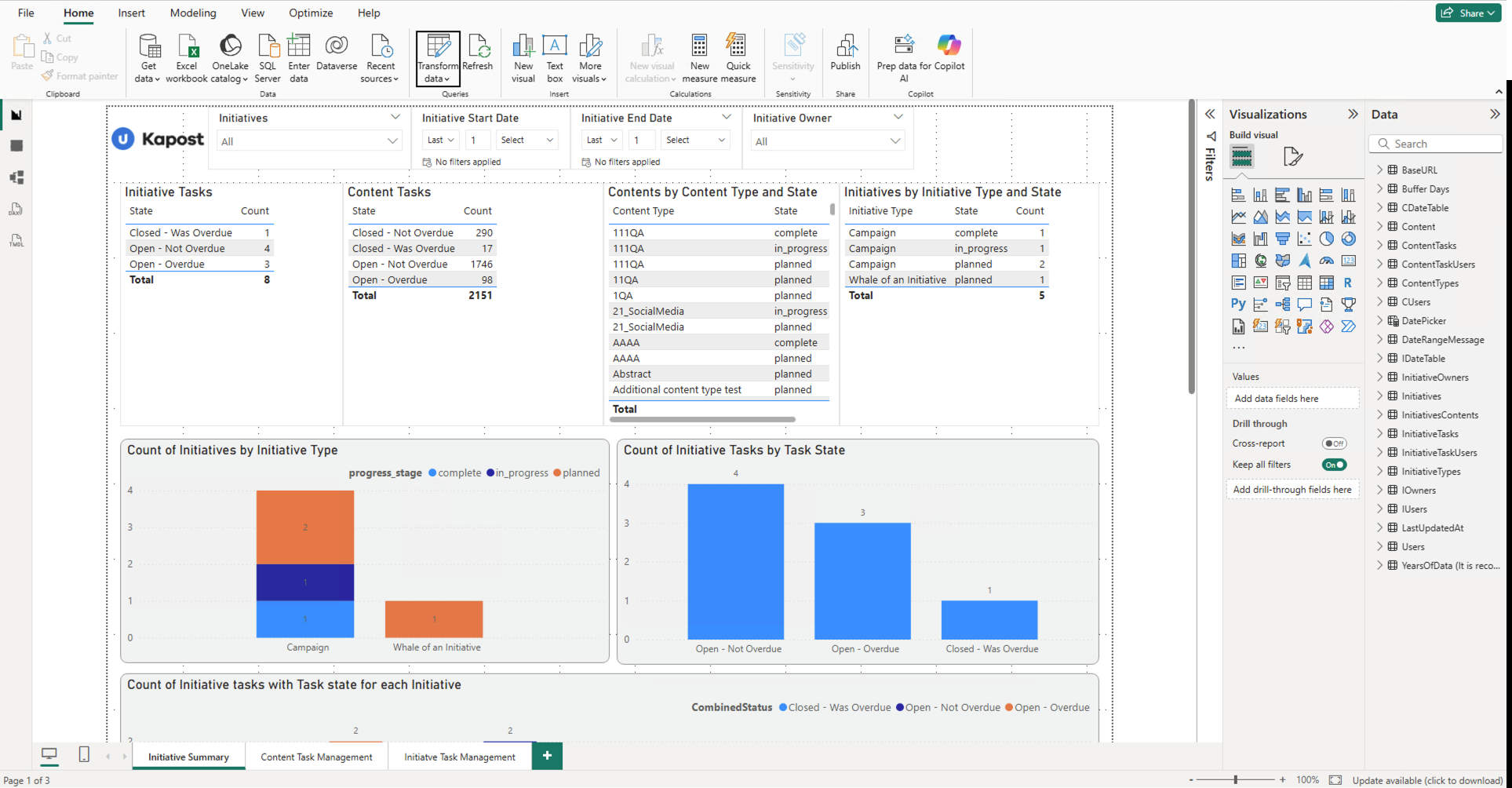
The Initiative Summary is the starting point of the report. It provides a high-level view of your initiatives and the tasks beneath them, so stakeholders can quickly understand overall progress and workload distribution.
Highlights
-
Top filter bar: Narrow the view by Initiatives, Initiative Start Date, Initiative End Date, and Initiative Owner.
-
Initiative Tasks and Content Tasks tables: Task counts grouped by state such as Open – Overdue, Open – Not Overdue, Closed – Was Overdue, and Closed – Not Overdue, each with a running total.
-
Contents by Content Type and State: A breakdown of content items by type and lifecycle state such as planned, in_progress, and complete.
-
Initiatives by Initiative Type and State: Initiative counts by type such as Campaign and Whale of an Initiative, and by progress stage.
-
Count of Initiatives by Initiative Type: A stacked column chart showing how initiatives are distributed across progress stages like complete, in_progress, and planned.
-
Count of Initiative Tasks by Task State: A column chart showing the volume of initiative tasks in each state.
-
Count of Initiative tasks with Task state for each Initiative: A per-initiative column chart of task states using a combined status.
-
Count of Contents by Content Type: A stacked column chart of content volume by type, split by content state.
-
Count of Content Tasks by Task State: A column chart showing the volume of content tasks in each state.
-
Count of Content tasks with Task state for each Content: A per-content column chart of task states.
How Customers Use It?
Use this page as your executive dashboard: confirm how many initiatives are in flight, see whether work is planned, in progress, or complete, and quickly identify initiatives carrying overdue tasks that need attention.
Tip: The Initiative Start Date and Initiative End Date filters only include initiatives that have those dates set. To also see initiatives without a start or end date, clear the relevant date filter.
Understanding On-Time Delivery (OTD) and Buffer
Both task-management pages, Content Task Management and Initiative Task Management, measure how reliably work is delivered on time. Three figures drive this: On Time Tasks, On Time Delivery %, and the On Time column in the assignee table. All three respond to the Buffer value you set.
What is Buffer?
Buffer is a grace period, measured in days, that you add on top of a task's deadline before it is counted as late. You control it with the Buffer Days slider in the filter bar.
-
Buffer = 0 — a task must be completed on or before its deadline to count as on time.
-
Buffer = 3 — a task completed up to 3 days after its deadline still counts as on time.
Use Buffer to match your team's real-world service level. If a short delay is acceptable in your process, raise the Buffer so your on-time numbers reflect how your team actually operates.
What is On-Time Delivery (OTD)?
On-Time Delivery (OTD) measures the share of eligible tasks that were delivered within their deadline plus your Buffer. It is calculated from two building blocks:
-
On Time Tasks: The number of tasks that had a deadline, have been completed, and were finished on or before the deadline plus the Buffer.
-
On Time Eligible Tasks: Tasks that should be judged for timeliness. A task is eligible once it has a deadline and either it has already been completed or its deadline plus Buffer has already passed.
Tasks that are still open and not yet due are excluded, so your score is not penalized for work that still has time left.
Formula
-
On Time Delivery % = On Time Tasks ÷ On Time Eligible Tasks
The same On Time value appears per person in the assignee detail table, so you can see on-time performance for the whole page or for an individual team member.
Why The Number Changes When You Move The Buffer?
-
Increasing Buffer generally raises OTD: More late-but-close tasks count as on time, and some not-yet-overdue tasks remain outside the eligible pool a little longer.
-
Decreasing Buffer generally lowers OTD: The deadline is enforced more strictly.
Content Task Management
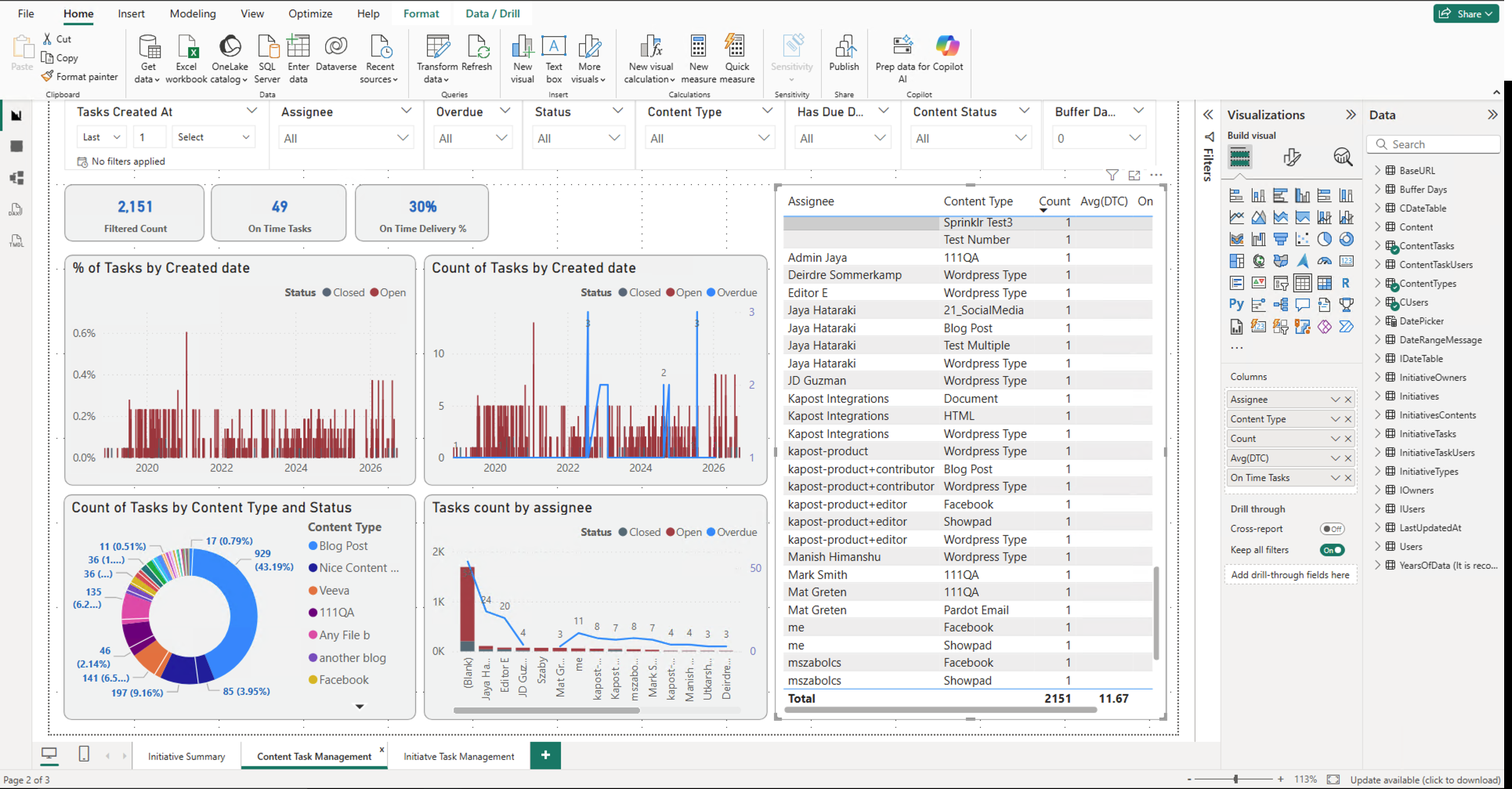
The Content Task Management page drills into content-level work. It focuses on the individual tasks tied to content pieces, helping content managers understand volume, timeliness, and ownership across all content types.
Highlights
-
KPI cards: Filtered Count, On Time Tasks, and On Time Delivery % give an instant read on content task health.
-
Filter bar: Refine by Tasks Created At, Assignee, Overdue, Status, Content Type, Has Due Date, and Buffer Days.
-
% of Tasks by Created date: A stacked view of open vs. closed tasks over time by year.
-
Count of Tasks by Created date: Task volume trend with an overlay for overdue counts.
-
Count of Tasks by Content Type and Status: A donut chart showing how content work is spread across content types.
-
Tasks count by assignee: Workload distribution across team members.
-
Detail table: Per-assignee and per-content-type breakdown with Count, Avg (DTC), and On Time metrics.
How Customers Use It?
Content leads use this page to balance workload and protect deadlines; see who is carrying the most content tasks, which content types generate the most work, and whether delivery is staying on time.
Note: On Time Tasks, On Time Delivery %, and the On Time column in the assignee table all respond to the Buffer Days slider. See Understanding On-Time Delivery (OTD) and Buffer for details. Avg (DTC) is the average number of days taken to complete a task.
Initiative Task Management
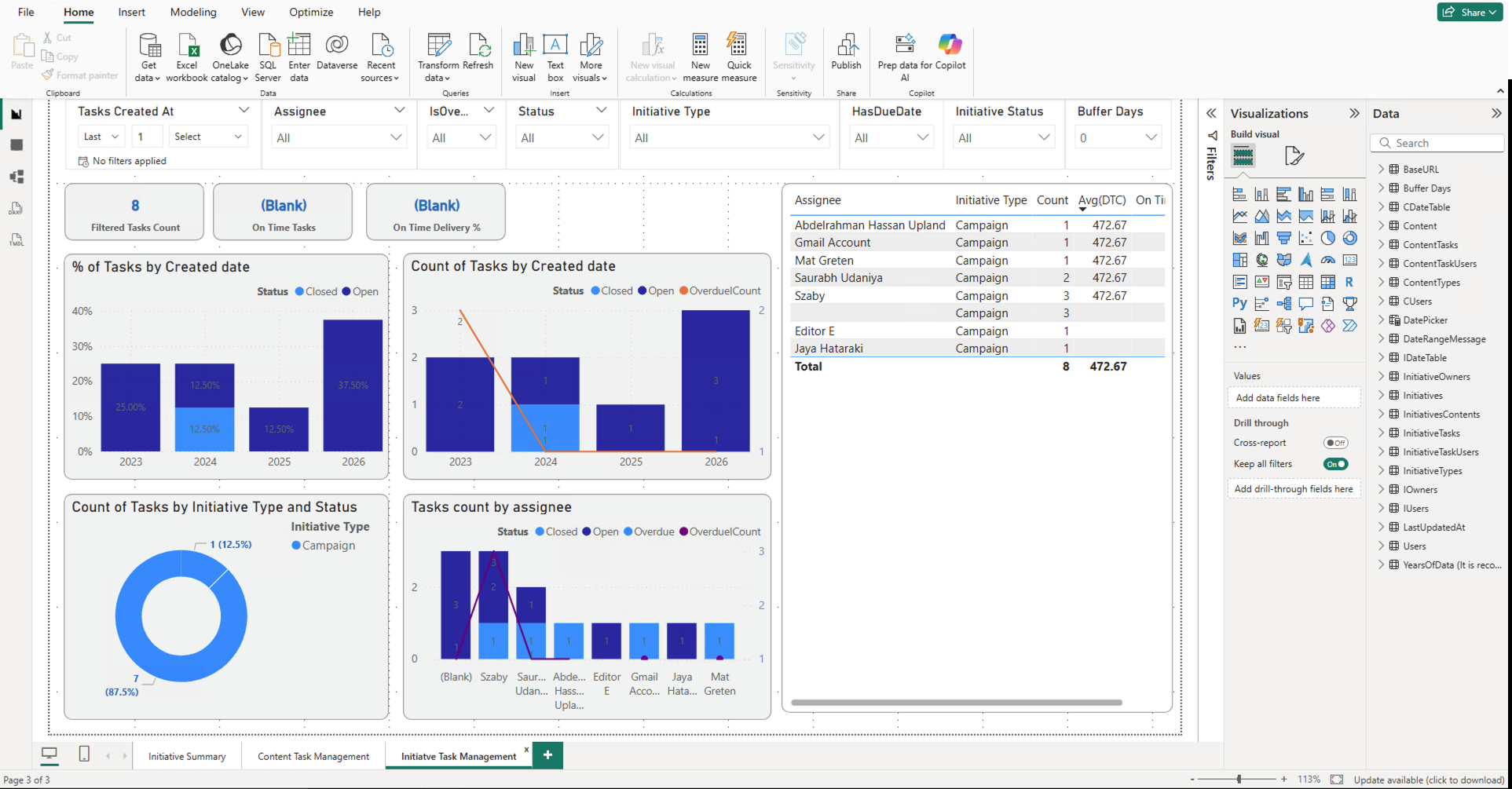
The Initiative Task Management page mirrors the content view but focuses on tasks at the initiative level. It helps program and campaign owners track the operational work that drives each initiative forward.
Highlights
-
KPI cards: Filtered Tasks Count, On Time Tasks, and On Time Delivery % summarize initiative task performance.
-
Filter bar: Refine by Tasks Created At, Assignee, IsOverdue, Status, Initiative Type, Initiative Status, and Buffer Days.
-
% of Tasks by Created date: Open vs. closed initiative tasks over time.
-
Count of Tasks by Created date: Task volume trend with an overdue overlay.
-
Count of Tasks by Initiative Type and Status: A donut chart of task distribution by initiative type.
-
Tasks count by assignee: Who is responsible for initiative-level tasks.
-
Detail table: Per-assignee and per-initiative-type breakdown with Count, Avg (DTC), and On Time values.
How Customers Use It?
Initiative and campaign owners use this page to keep delivery on track; confirm which tasks are open or overdue, check that work is evenly distributed across the team, and monitor on-time delivery for the initiatives they own.
Note: As on the content page, On Time Tasks, On Time Delivery %, and the assignee table's On Time column are driven by the Buffer Days slider. See Understanding On-Time Delivery (OTD) and Buffer for details.